

Installing OpenClaw does not need complex server knowledge or long command-line sessions. You can deploy it in minutes using a one-click Docker template on a VPS.
In this guide, you will learn how to install OpenClaw on a Hostinger VPS, step by step, using Hostinger’s built-in Docker Manager.
OpenClaw, previously known as MoltBot and Clawdbot, runs fully on your own server. You stay in control of your data while connecting AI to platforms like WhatsApp, Telegram, Slack, Discord, and more. Using a VPS keeps everything private, flexible, and scalable as your usage grows.
This guide focuses on Hostinger VPS because it offers an easy Docker interface, fast provisioning, and reliable performance for AI workloads. You do not need to install Docker manually or deal with complex configurations.
What You Need Before Installing OpenClaw
Before starting the installation, make sure you have the following ready:
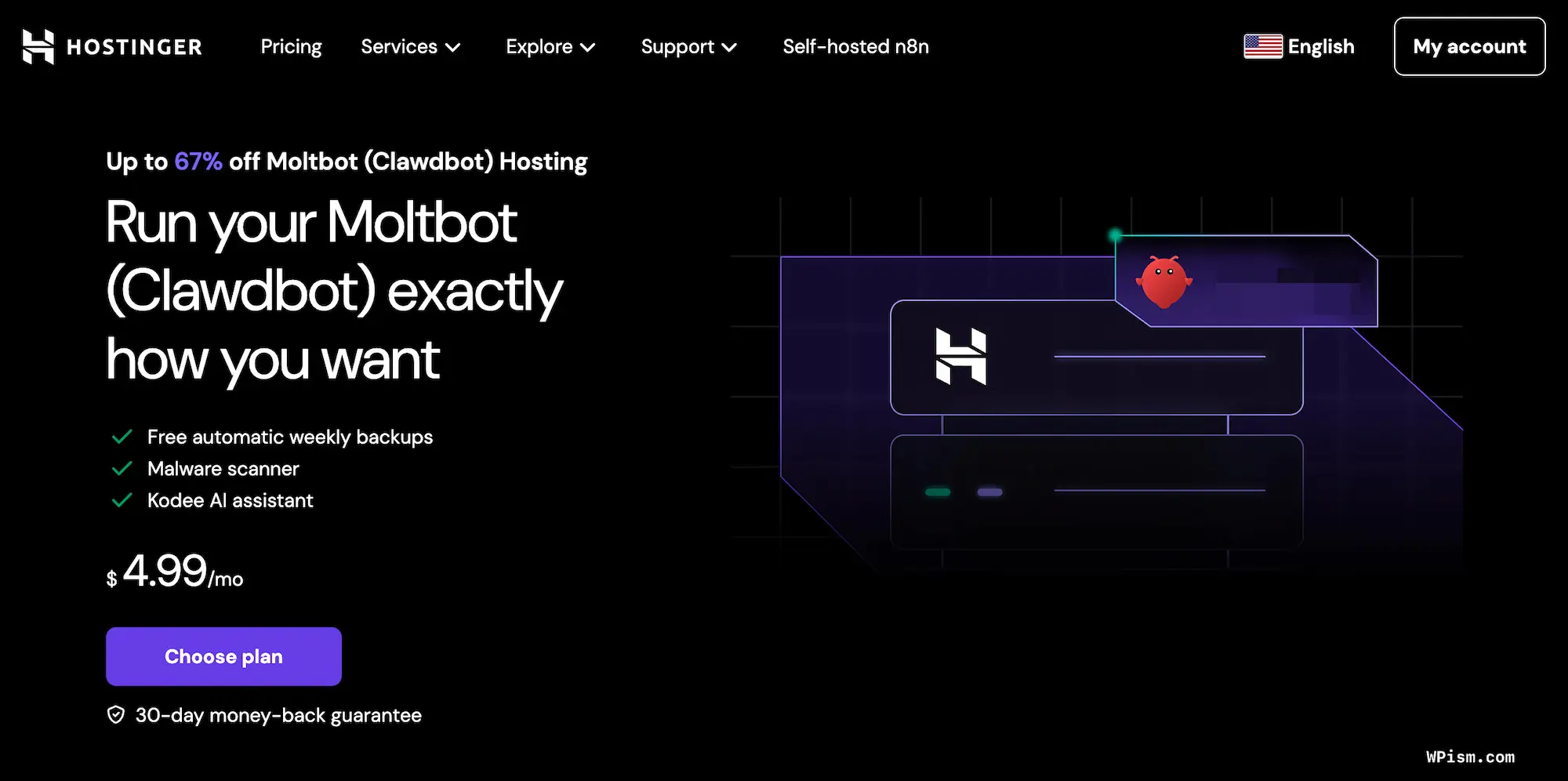
You need an active Hostinger VPS plan. A server with at least 1 GB RAM works for testing and light usage, but higher RAM helps if you plan to connect multiple channels or AI models.
You also need access to Hostinger hPanel, which is included with every VPS plan. Docker Manager is available directly inside the VPS dashboard, making deployment simple.
Steps to Install OpenClaw
Once your VPS is active, you are ready to deploy OpenClaw using the one-click template.
Step 1: Purchase and Set Up Your Hostinger VPS
Start by choosing a VPS plan from Hostinger that fits your expected usage. If you plan to run OpenClaw for personal use or testing, a basic VPS plan works well. For production usage with multiple integrations, choose higher RAM and CPU.
After completing the purchase, Hostinger provisions your VPS automatically. This process usually finishes within a few minutes. Once ready, you can access your server details, including IP address and login credentials, from hPanel.
Your VPS is now prepared for Docker-based applications like OpenClaw.
Step 2: Install Docker Manager in hPanel
Log in to Hostinger hPanel and open your VPS dashboard. From the left sidebar, locate the Docker section and select Docker Manager.
If Docker Manager is not installed yet, you will see an option to install it. Click the install button and wait a few minutes while Hostinger sets everything up in the background.
Once the installation completes, Docker Manager becomes your control center for deploying and managing OpenClaw.
Step 3: Deploy OpenClaw from the Docker Catalog
Inside Docker Manager, open the Catalog tab. This catalog includes pre-configured templates for popular applications.
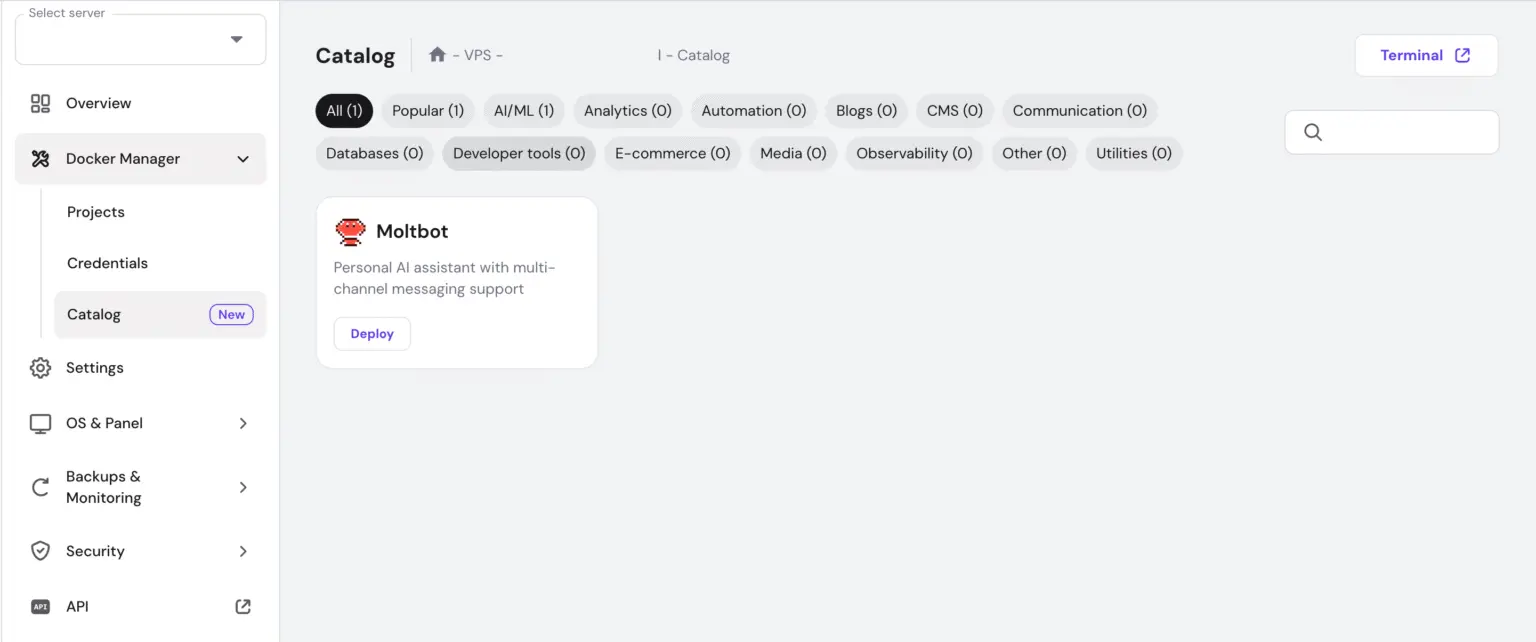
Use the search bar to find OpenClaw. Click on the OpenClaw template to view deployment details. When you are ready, click Deploy.
This one-click approach pulls the correct Docker image and prepares the container automatically, saving time and reducing setup errors.
Step 4: Configure OpenClaw Environment Variables
During deployment, Hostinger prompts you to configure environment variables. These settings control how OpenClaw works and how you access it.
The most important variable is the gateway token. This token is generated automatically and acts as the login key for your OpenClaw web interface. Save it securely.
You may also see optional fields for AI integrations. These include API keys for AI providers. You can skip these for now and add them later from the OpenClaw interface.
Required:

OPENCLAW_GATEWAY_TOKEN: This is auto-generated for you. This token will be used to access your OpenClaw web interface. Save this token securely.

Optional (for AI integration):

ANTHROPIC_API_KEY: Claude web session key for browser-based authentication
OPENAI_API_KEY: Claude web cookie for session persistence
Once the variables are set, confirm the configuration and continue.
Step 5: Complete the Deployment and Start OpenClaw
After confirming the settings, Docker Manager pulls the OpenClaw image and starts the container. This process usually takes one to two minutes.
When the status shows Running, OpenClaw is live on your VPS.
Docker Manager assigns a port to the OpenClaw web interface. Combine this port with your VPS IP address to access Moltbot in your browser.
You now have a self-hosted OpenClaw instance running on Hostinger VPS.
Why Use Hostinger VPS for OpenClaw
Hostinger VPS makes OpenClaw installation beginner-friendly while still offering full control. You get root access, predictable pricing, and a clean interface designed for Docker workloads.
Docker Manager removes the need for command-line Docker commands. You deploy OpenClaw from a catalog, set environment variables, and start the container with a few clicks.
Performance also matters for AI assistants. Hostinger VPS servers handle background tasks, message queues, and API calls smoothly, which helps OpenClaw stay responsive across connected platforms.